An open-source automation tool for Clash Royale on Windows and macOS. Uses Android emulation and image recognition to automate card leveling, pass progression, and daily gameplay tasks.
Join our Discord for support and updates.
Battle Automation
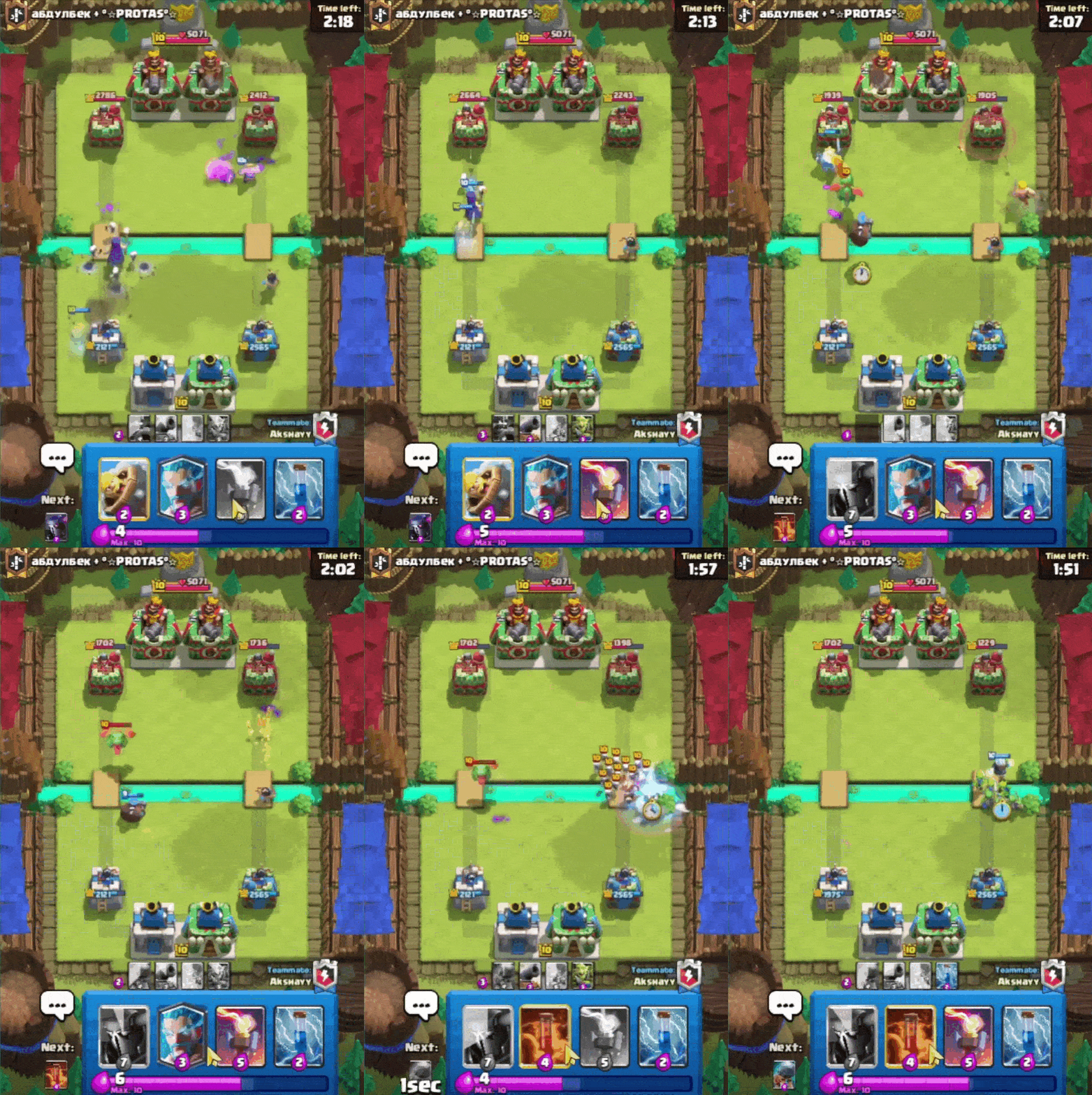
- Trophy Road 1v1, Path of Legends, and 2v2 battles
- Random deck selection
- Smart chest management
Progression
- Card mastery reward collection
- Automatic card upgrades
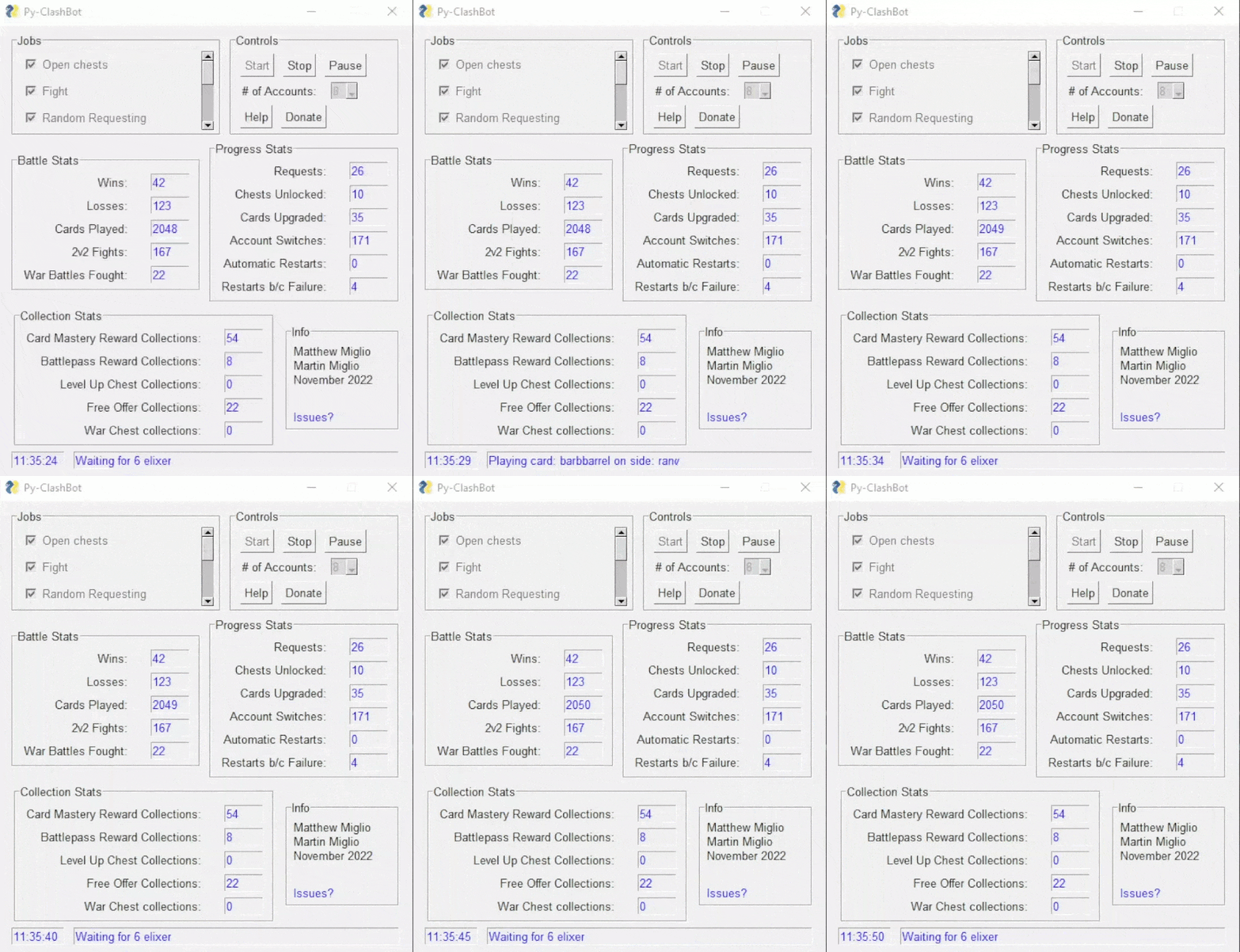
- Real-time win/loss tracking
Emulator Support
- MEmu, BlueStacks 5, Google Play Games
- OpenGL, DirectX, and Vulkan render modes
Windows: Download the installer from releases and run it.
macOS: Download the DMG from releases, drag to Applications. On first launch, go to System Settings > Privacy & Security and click "Allow" for py-clash-bot.
Choose one:
MEmu (Windows only)
- Download MEmu 9.2.5.0 (alternate link)
- Run the installer
BlueStacks 5 (Windows/macOS)
- Download BlueStacks 5 (not BlueStacks X/10)
- Run the installer
Google Play Games (Windows only)
- Download the developer emulator (not BETA)
- Run the installer and complete the Google sign-in when prompted
- Start py-clash-bot
- Go to the Emulator tab and select your emulator from the dropdown
- Click Start — the bot creates the emulator instance automatically
- Install Clash Royale on the emulator via Google Play Store
- Open Clash Royale, complete the tutorial, set language to English
- Close the emulator completely
- Click Start again to begin automation
Default settings work for most users. Only enable "Show advanced settings" to change render mode if troubleshooting.
- Requires UEFI and Hyper-V enabled in BIOS (enable UEFI, enable Hyper-V)
- Hardware intensive — try Google Play Games on low-end machines
- Black screen or boot issues: switch render mode in bot settings (OpenGL/DirectX/Vulkan)
- Corrupt VMs from old versions: delete existing MEmu VMs or reinstall MEmu
- Must use BlueStacks 5, not BlueStacks X/10
- Expected install path:
C:\Program Files\BlueStacks_nxt - Startup fails: open Multi-Instance Manager, create fresh "Pie 64-bit" instance, leave other settings as default, click Retry in bot
- Black screen: switch render mode in bot settings
- Must use the DEVELOPER version, not BETA
- Hanging on boot: check for Google sign-in popup in a minimized browser window
- Rendering issues: adjust settings via System tray > Google Play Games > Graphics settings
- Installer won't download: open Task Manager > File > Run new task, paste installer path, check "Run as admin"
- Set emulator system language to English (in addition to game language)
See CONTRIBUTING.md | Discord | Issues
Source: NC-CL-1.0 | Assets: CC BY-NC-SA 4.0 | Commercial inquiries


![@dependabot[bot]](https://avatars.githubusercontent.com/in/29110?s=64&v=4)


